Scanner App - Scan PDF & Docs
TapSuiteTools
4.51.78K Reviews
- Version
- 2.3.6
- Installs
- 5.00M
- Age Rating
- Everyone
Screenshots
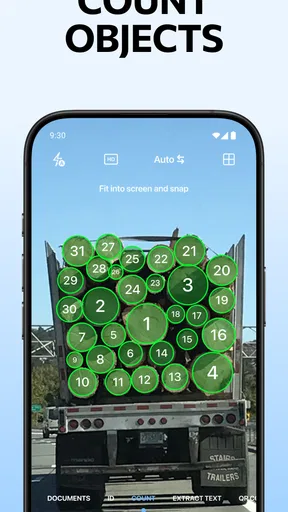
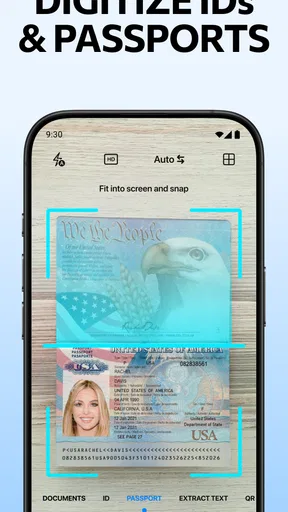
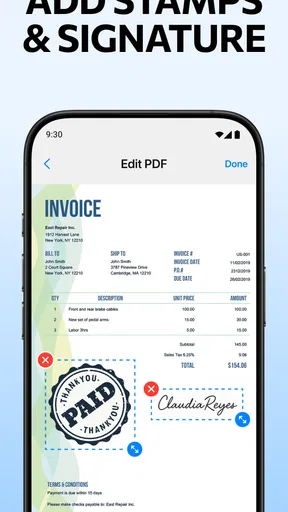
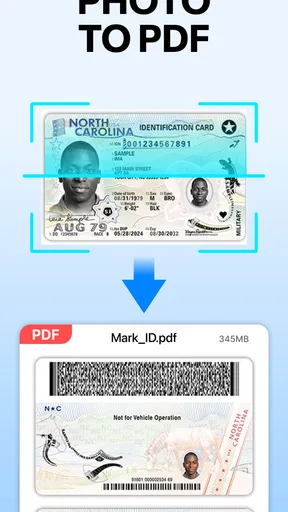
Our Review of Scanner App - Scan PDF & Docs
 Analysis by Appyee
I usually reach for a phone scanner when a document needs to be sent now, not when I have time to find a printer or flatbed scanner. That quick, practical job is where Scanner App - Scan PDF & Docs makes sense: it turns a camera into a way to capture paperwork and prepare it for sharing. It is a free tools app from TapSuite, with optional in-app purchases ranging from $3.99 to $59.99 per item. I would judge it less as a complete office system and more as a convenient bridge between paper and the digital files I already use.
What I would decide before installing
The first question is how often you scan and what you do with the result. If you mainly need to send a signed page, save a receipt, or keep a few pages together as a PDF, a dedicated scanner app can be more direct than opening a broader document suite. If you need a dependable archive, detailed editing, or a workflow shared across a team, the camera app is only one part of the answer; you may prefer a desktop scanner or a document-management tool built around those needs.
The app is rated for Everyone and has a 4.4 average from around 98,000 ratings, with more than a million installs. That suggests plenty of people use it, but popularity does not guarantee that every scan will be effortless. Lighting, paper condition, and the contrast between ink and page all matter when a phone camera is doing the capture. My practical advice is to test one ordinary page before relying on it for a deadline or an important submission.
Getting Started: First Impressions
Right off the bat, downloading and installing the Scanner App - Scan PDF & Docs was a breeze. It’s available for both Android and iOS, so you’re covered no matter your device preference. What caught my attention immediately was the clean and intuitive interface. There’s nothing worse than an app cluttered with too many buttons, and thankfully, this app keeps it simple and straightforward.
Features That Stand Out
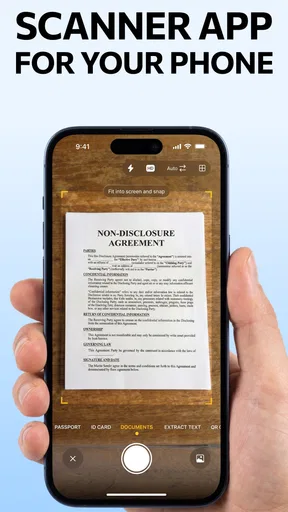
Once you open the app, you’re greeted with a minimalistic home screen that prompts you to start scanning. The app uses your phone’s camera to capture documents, and the quality is surprisingly crisp. I tested it on a variety of documents, from crumpled receipts to multi-page contracts, and it handled them all with ease.
One feature that’s particularly helpful is the auto-edge detection. It smartly recognizes the edges of the document, cropping it perfectly, so you don’t have to fiddle with adjustments manually. This is especially useful when you’re in a hurry and need to scan something quickly.
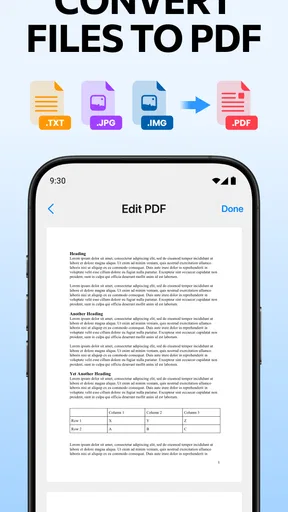
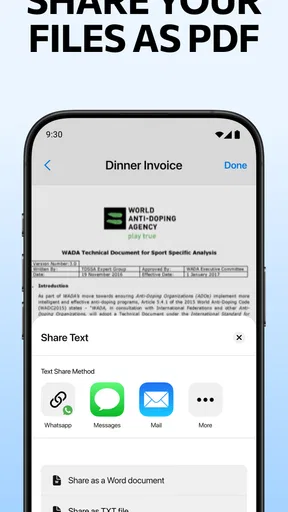
Converting scans into PDFs is a breeze, and you can even choose between different file formats if needed. Sharing documents directly from the app is another handy feature. Whether you’re emailing a contract or uploading a document to cloud storage, it’s all just a few taps away.
A useful routine for real paperwork
One everyday case where I would use this is a school permission form or a signed work page that has to reach someone before the end of the day. I would place the paper on a surface with a contrasting background, make sure the room light does not cast a hard shadow across the writing, and check the captured edges before moving on. That small pause matters: a fast scan that cuts off a signature is less useful than taking a few extra seconds to retake it.
For several pages, I would keep them in their original order and review the final file before sharing. Batch capture saves the stop-start routine of creating a separate file for every sheet, but it also makes a misplaced page harder to notice if I rush. A quick page-by-page check helps catch a blank capture, a rotated sheet, or a page that landed out of sequence. I would also use a clear filename that identifies the document and its purpose, rather than leaving it with a generic label that is difficult to find later.
Receipts are another good fit, especially when I want a readable copy before the paper fades or gets lost in a bag. For small print, I would avoid photographing at an angle and check that the text remains legible in the saved scan. A phone scan is handy for records and reimbursement paperwork, but I would keep the original receipt when a business or institution requires it.
Why It's Worth Your Time
The app isn’t just about scanning. It goes a step further with its OCR (Optical Character Recognition) capability. This feature allows the app to recognize text within the scanned documents, making it searchable. Imagine scanning a printed page and being able to search for specific terms or phrases later on. It’s like having your own personal assistant!
Searchable text is most useful when you have a specific retrieval problem: finding a name in a set of notes, locating a phrase in a printed handout, or checking a detail in a document you scanned last week. I would treat OCR as a convenience rather than a guarantee. Handwriting, faint printing, unusual layouts, and skewed pages can make recognition less dependable, so I would verify important names, dates, and figures against the image before acting on them.
There is also a useful distinction between a page that merely looks like a document and one whose words can be found later. If the scan is going into an archive, searchable text can save time; if it is only a signed form being emailed once, a clear image may be enough. That means I would not turn on or rely on text recognition for every quick capture by default. I would choose it when later search is likely to matter.
Another thing that makes this app stand out is its ability to batch scan multiple pages. If you’ve ever tried to scan a multi-page document on a traditional scanner, you know it can be a cumbersome process. With this app, you line up your pages, scan them one after another, and voila – they’re compiled into a single PDF file.
Batch scanning is a particularly good match for packets that are short enough to handle comfortably by hand: a few forms, several pages of class notes, or a short agreement. For a thick stack, the camera workflow can become tiring, and keeping every sheet aligned takes attention. I would split a large job into sensible sections, name each part clearly, and combine them later only if the recipient needs one file. That is less elegant than feeding a stack into an automatic document feeder, but it can be faster than travelling to a scanner for a modest amount of paper.
Where other scanning options make more sense
The usual alternatives fall into a few different groups. A built-in phone scanning option is convenient when I only need an occasional page and would rather not add another app. A general document or cloud-storage app may be a better fit if my main goal is keeping files alongside other work. A physical scanner is still preferable for high-volume batches, delicate originals, or repeatable office-quality capture. I would not assume this app replaces those tools; its advantage is having a mobile capture workflow ready when paper appears unexpectedly.
It is also worth considering where the finished PDF needs to go. If the recipient asks for a particular naming convention, page order, or file format, I would check those requirements before scanning the entire packet. The app can help create and share a document, but the person sending it still needs to confirm that the result meets the receiving office’s instructions. For a one-page form, that is a quick check; for a long submission, it can prevent a frustrating rescan.
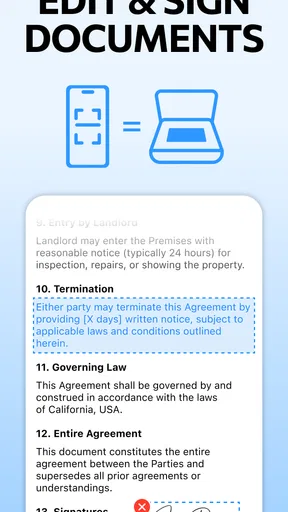
People who regularly edit text, annotate long documents, or collaborate on revisions may be better served by a dedicated PDF editor or a desktop workflow. A scanner is designed to capture paper, not necessarily to make every later document task comfortable. Likewise, if the work involves confidential paperwork, I would think about the destination and handling process before sharing any scan. The convenience of sending a file from a phone should not replace care about who receives it.
Some Things to Consider
While I’m singing its praises, there are a couple of things you might want to consider. The free version of the app is fantastic for basic use, but unlocking its full potential requires a subscription. This is pretty standard with most apps these days, but it’s something to keep in mind if you’re trying to manage a budget.
Because the app is free to install but offers in-app purchases, I would check what is included in the free experience and what a paid option adds before committing. The available purchase range runs from $3.99 to $59.99 per item, so it is worth reading the purchase screen carefully and deciding whether the extra functions solve a regular problem for you. Someone who scans only now and then may find that basic capture is enough; a frequent user should compare the cost with the time saved and with tools they already have.
The app’s current version is 2.3.5 and it requires Android 8.0 or later. That is useful to know when checking an older device: if the operating system falls below that requirement, this is not the right choice for that phone. More generally, a camera-based workflow depends on having a device that can focus clearly and enough light to capture the page. If either is unreliable, a physical scanner or another device may produce a better result with less effort.
Also, while the auto-edge detection is generally spot on, it can occasionally struggle with irregularly shaped documents or very light text. But hey, nobody’s perfect, and these hiccups are few and far between.
I would be especially careful with pale pencil, glossy paper, pages with writing close to the edge, or forms placed on a similarly colored surface. In those cases, I would inspect the crop rather than accepting it automatically, and retake the page if any content looks clipped. The same goes for a folded or crumpled sheet: flattening it as much as possible and choosing even lighting can improve the result more than repeatedly tapping the camera button.
One trade-off with any phone scan is that convenience can hide small quality problems. A file may look fine in a thumbnail but reveal blur or faint text when opened larger. Before sending a document that affects a payment, application, or agreement, I would zoom in on the smallest print and check every page. This habit takes little time and is more useful than assuming automatic processing has made the scan perfect.
Final Thoughts
If you’re like me and often find yourself in need of a reliable scanning solution, the Scanner App - Scan PDF & Docs is definitely worth checking out. It’s a solid performer that’s easy to use and packed with features that make document management a breeze. Whether you’re a student, professional, or just someone who loves staying organized, this app is a fantastic addition to your toolkit.
I would recommend it most to students who need to submit paper assignments, freelancers who occasionally send signed documents, and anyone who wants a simple way to turn household paperwork into files. It is less compelling for someone who already has a scanner workflow they trust, scans large volumes every week, or needs advanced control over editing and archiving. In those cases, the extra convenience of a mobile app may not outweigh the limits of handling pages by hand.
If you are deciding whether to switch from another scanner app, the main cost is not just learning a new interface; it is moving the habit of naming, sorting, and retrieving your files. I would try a small set of everyday documents first, then confirm that the PDF output and sharing steps suit the way you work. There is little reason to move an established archive unless this app makes your regular capture process noticeably easier.
TapSuite’s scanner is best understood as a practical tool for the moments when paper needs to become a shareable file without a trip to a dedicated machine. Its simple capture flow, multi-page handling, and text recognition cover useful everyday ground, while lighting, page condition, and paid extras deserve a little attention. For occasional and moderate scanning on a compatible phone, I think it is a sensible option; for bulk or specialist document work, I would choose a purpose-built alternative.
So next time you’re in a bind and need to scan a document on the go, give this app a whirl. It might just become your new best friend in the world of mobile document management!
Verdict
Strengths of Scanner App - Scan PDF & Docs
- High-quality scan results with adjustable settings.
- User-friendly interface makes scanning easy.
- Supports multiple file formats for export.
- Includes OCR feature for text extraction.
- Cloud integration for easy file storage.
Limitations of Scanner App - Scan PDF & Docs
- Ads can be intrusive in the free version.
- Limited features without a subscription.
- Occasional crashes on older devices.
- OCR struggles with handwritten text.
- No batch scanning in the free version.
Other Releases by TapSuite
View All
Chatbot App - AI Assistant
Productivity4.2

Deepsearch AI Search Assistant
Lifestyle4.3

Clean Up Phone Storage: CleanX
Tools4.5
Similar Picks in This Category
View All
Google LLC4.0

Gboard - the Google Keyboard
Google LLC4.5

Google Play services
Google LLC4.3

Google Play Store
Google LLC4.9

Files by Google
Google LLC4.5

SHAREit: Transfer, Share Files
Smart Media4U Technology Pte.Ltd.4.3
Frequently Asked Questions
What features does the Scanner App offer?
The Scanner App provides a variety of features, including the ability to scan documents, receipts, and photos with high-quality output. Users can convert these scans into PDF files, apply filters for enhanced readability, and share them directly via email or cloud services. Additionally, the app offers OCR (Optical Character Recognition) for text extraction.
Is the Scanner App user-friendly for beginners?
Yes, the Scanner App is designed with a user-friendly interface that makes it accessible even for beginners. The app provides step-by-step instructions for scanning and editing documents, ensuring that users can easily navigate through its features without needing prior experience with similar apps.
What are the system requirements for using the Scanner App?
The Scanner App is compatible with both Android and iOS devices. For Android, it requires version 5.0 or higher, while iOS users need version 11.0 or later. The app is optimized to run smoothly on most smartphones and tablets, ensuring a seamless experience across different devices.
Are there any in-app purchases or subscriptions required?
While the Scanner App offers a free version with basic functionalities, there are in-app purchases available for advanced features. Users can opt for a subscription plan to access premium features such as unlimited scans, advanced editing tools, and cloud storage integration. It’s recommended to review the pricing before committing.
How secure is the data scanned and stored using the Scanner App?
The Scanner App prioritizes user privacy and data security. Scanned documents are stored locally on the user's device unless shared manually. The app incorporates encryption for data protection during transfers. It’s advisable to review the app’s privacy policy to understand how your data is handled and protected.
